Edit
<Edit> provides us a layout for displaying the page. It does not contain any logic but adds extra functionalities like a refresh button.
We will show what <Edit> does using properties with examples.
You can swizzle this component to customize it with the refine CLI
Properties
title
It allows adding titles inside the <Edit> component. if you don't pass title props it uses the "Edit" prefix and singular resource name by default. For example, for the "posts" resource, it will be "Edit post".
saveButtonProps
The <Edit> component has a save button by default. If you want to customize this button you can use the saveButtonProps property like the code below.
Clicking on the save button will submit your form.
Refer to the <SaveButton> documentation for detailed usage. →
canDelete and deleteButtonProps
canDelete allows us to add the delete button inside the <Edit> component. If the resource has the canDelete property,refine adds the delete button by default. If you want to customize this button you can use the deleteButtonProps property like the code below.
When clicked on, the delete button executes the useDelete method provided by the dataProvider.
Refer to the <DeleteButton> documentation for detailed usage. →
Refer to the usePermission documentation for detailed usage. →
resource
<Edit> component reads the resource information from the route by default. This default behavior will not work on custom pages. If you want to use the <Edit> component in a custom page, you can use the resource property.
Refer to the custom pages documentation for detailed usage. →
recordItemId
The <Edit> component reads the id information from the route by default. recordItemId is used when it cannot read from the URL(when used on a custom page, modal or drawer).
The <Edit> component needs the id information for the <RefreshButton> to work properly.
mutationMode
Determines which mode mutation will have while executing <DeleteButton> .
Refer to the mutation mode docs for further information. →
dataProviderName
If not specified, Refine will use the default data provider. If you have multiple data providers and want to use a different one, you can use the dataProviderName property.
import { Refine } from "@pankod/refine-core";
import { Edit } from "@pankod/refine-antd";
import routerProvider from "@pankod/refine-react-router-v6";
import dataProvider from "@pankod/refine-simple-rest";

const PostEdit = () => {
    return <Edit dataProviderName="other">...</Edit>;
};

export const App: React.FC = () => {
    return (
        <Refine
            routerProvider={routerProvider}
            dataProvider={{
                default: dataProvider("https://api.fake-rest.refine.dev/"),
                other: dataProvider("https://other-api.fake-rest.refine.dev/"),
            }}
            resources={[{ name: "posts", edit: PostEdit }]}
        />
    );
};
goBack
To customize the back button or to disable it, you can use the goBack property.
isLoading
To toggle the loading state of the <Edit/> component, you can use the isLoading property.
breadcrumb
To customize or disable the breadcrumb, you can use the breadcrumb property. By default it uses the Breadcrumb component from @pankod/refine-antd package.
Refer to the Breadcrumb documentation for detailed usage. →
This feature can be managed globally via the <Refine> component's options
wrapperProps
If you want to customize the wrapper of the <Edit/> component, you can use the wrapperProps property. For @pankod/refine-antd wrapper elements are simple <div/>s and wrapperProps can get every attribute that <div/> can get.
headerProps
If you want to customize the header of the <Edit/> component, you can use the headerProps property.
Refer to the PageHeader documentation from Ant Design for detailed usage. →
contentProps
If you want to customize the content of the <Edit/> component, you can use the contentProps property.
Refer to the Card documentation from Ant Design for detailed usage. →
headerButtons
You can customize the buttons at the header by using the headerButtons property. It accepts React.ReactNode or a render function ({ defaultButtons }) => React.ReactNode which you can use to keep the existing buttons and add your own.
headerButtonProps
You can customize the wrapper element of the buttons at the header by using the headerButtonProps property.
Refer to the Space documentation from Ant Design for detailed usage. →
footerButtons
You can customize the buttons at the footer by using the footerButtons property. It accepts React.ReactNode or a render function ({ defaultButtons }) => React.ReactNode which you can use to keep the existing buttons and add your own.
footerButtonProps
You can customize the wrapper element of the buttons at the footer by using the footerButtonProps property.
Refer to the Space documentation from Ant Design for detailed usage. →
actionButtons
actionButtonsUse headerButtons or footerButtons instead.
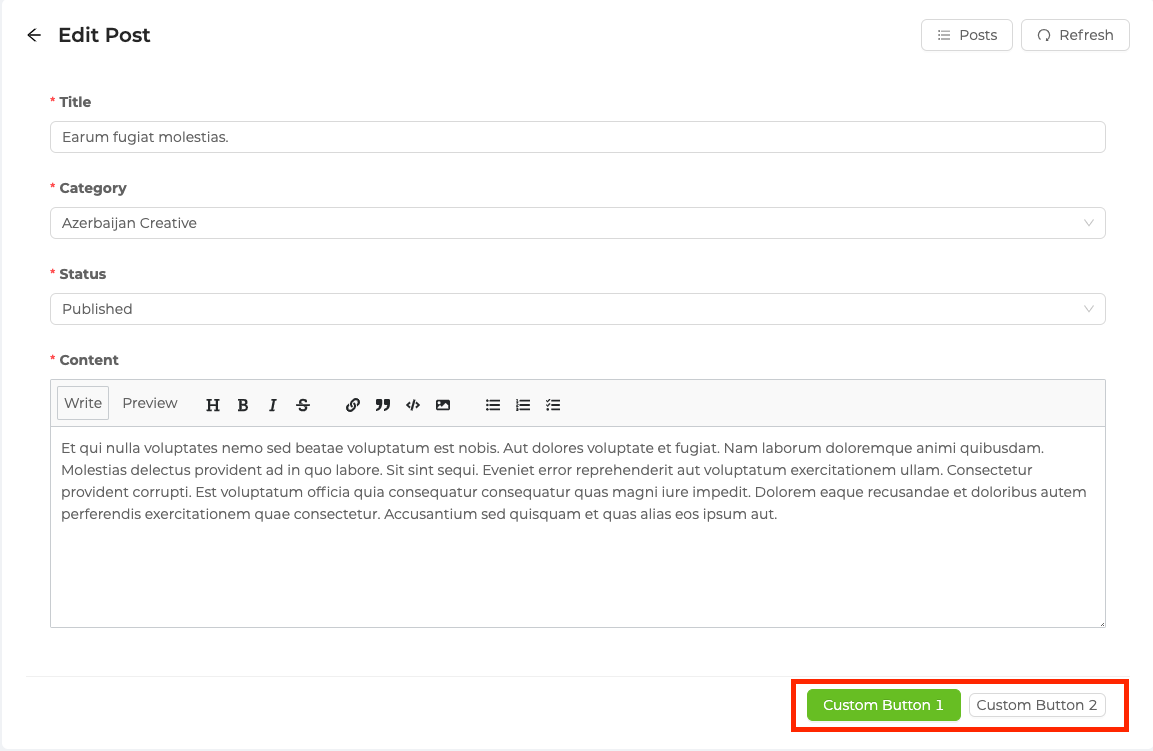
<Edit> uses the Ant Design <Card> component. The action property of the <Card> component shows <SaveButton> or <DeleteButton> based on your resource definition in the resources property you pass to <Refine>. If you want to use other things instead of these buttons, you can use the actionButton property like the code below.
import { Edit, Button } from "@pankod/refine-antd";

export const EditPage: React.FC = () => {
    return (
        <Edit
            actionButtons={
                <>
                    <Button type="primary">Custom Button 1</Button>
                    <Button size="small">Custom Button 2</Button>
                </>
            }
        >
            ...
        </Edit>
    );
};
pageHeaderProps
pageHeaderPropsUse headerProps, wrapperProps or contentProps instead.
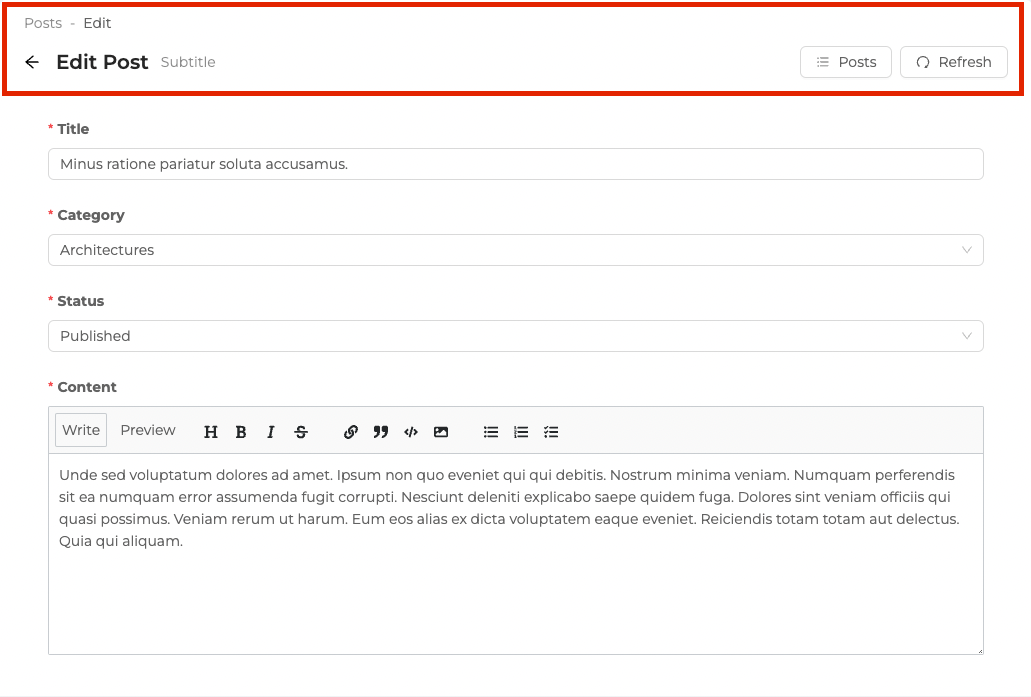
<Edit> uses the Ant Design <PageHeader> components, which means that you can customize the properties of pageHeaderProps.
By default, the extra property of the <PageHeader> component shows <RefreshButton> or <ListButton> based on your resource definition in the resources property you pass to <Refine> and the breadcrumb property shows <Breadcrumb> component.
import { Edit } from "@pankod/refine-antd";

export const EditPage: React.FC = () => {
    return (
        <Edit
            pageHeaderProps={{
                onBack: () => console.log("Hello, refine"),
                subTitle: "Subtitle",
            }}
        >
            ...
        </Edit>
    );
};
<Edit> component needs the id information for work properly so if you use the <Edit> component in custom pages, you should pass the recordItemId property.
API Reference
Properties
*: These properties have default values inRefineContextand can also be set on the <Refine> component.